
Service history of an item
Service history provides a full record of past services for an item, including which technician worked on it, what was done, and any attached notes. This article covers where to find service history and how to navigate the layout.
Where to find service history
You can open service history from two places.
From the job card
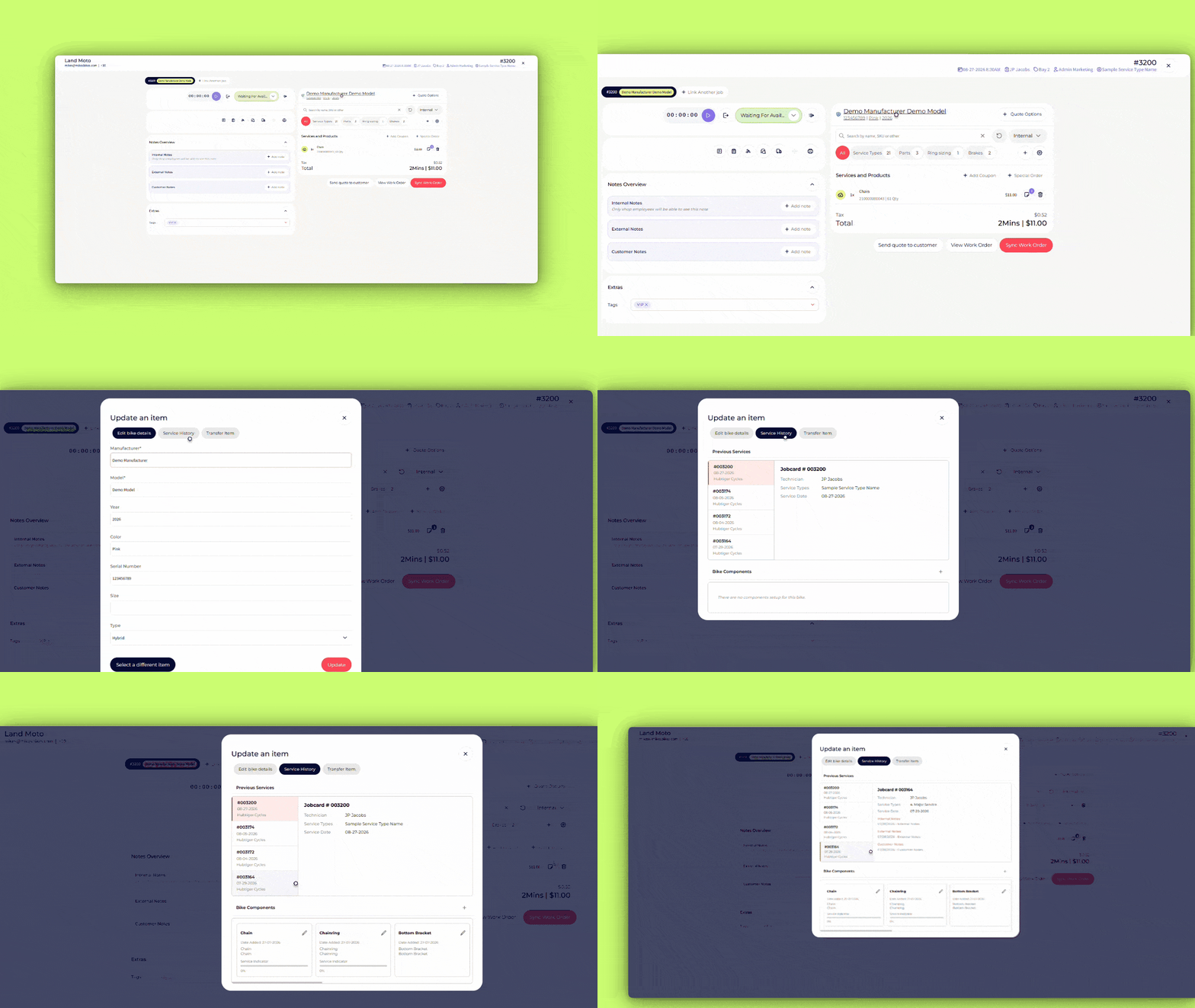
- Open the job card
- Select item details
- Select the service history tab
From the customer view
- Open the customer's profile
- Select the item tab
- Select the item you want to check
Understanding the service history screen
The screen is split into two panels.
Left panel: past services
The left panel lists every job card linked to this item. Each entry shows the store where the service took place and the service date.
Note: If your shop is part of a franchise, you'll also see services completed at other stores in the franchise here. If you're a single-store shop, you'll see services only from your own store.
Select any job card number in this list to jump straight to that job card, as long as it was completed at your store.
Right panel: service details
Select an entry in the left panel to see its details on the right. This includes:
- The technician who completed the service
- The services completed
- The service date
- Internal notes, external notes, and customer notes
Components section
You'll also see a components section on the service history screen.
- Select the + symbol to add a component
- Fill in the required fields:
- Gear type
- Manufacturer
- Model
- Description
- Date added
- Service interval (Optional)
- Select save
Once saved, the component appears in the components section. Select the edit icon next to any component to update its details.
Good to know: Currently, the components section appears only for bike shops, as it's built around bike-specific fields such as gear type and service interval.
If you have questions or need help, contact our support team at support@hubtiger.com or use our live chat.